Book pages and bonus content
A page for every book, with About the Book, where to buy it and its events. Add audio, video, PDFs and notes as extras: free for an email, free with a code, or for sale.
On this page
What a book page is
Every book your team hosts events about can have its own page at inlandbooks.com/books/your-book: the cover, title and authors, About the Book, a trailer, formats, praise, Buy the book with your stores, and the book’s upcoming events. It’s one link to share for the book, and the cover on your event pages opens it.
A page can also hold extras, at inlandbooks.com/books/your-book/extras: more of the book for the people who love it, like the author reading a chapter that was cut, an interview, a reading guide for book clubs, or a letter about how the book came to be. Older links and QR codes that use inlandbooks.com/extras/your-book still work: they open the extras.
With extras, you decide what each thing costs and how readers get in: some free in return for an email address, some free with a code printed in the book, some for sale one at a time, and everything together for a single “full access” price. Every reader needs a free Inland account (a one-time code by email, no password), and everything they unlock is kept in their library at /extras.
Readers’ side of things is explained on our bonus content page, which is a good link to send an author who’s curious.
Getting access
Book pages are on for every team. Find them under Books → Books & Extras in your dashboard menu, and use Book page in the event form to link an event to its book.
Extras (audio, video, PDFs and notes, free or paid) are on for every team too. A new page is just the book until you add one. On a page that’s only the book, click Add bonus content under the book in the editor, or choose Manage → Add bonus content on its row in Books & Extras. Either opens the Extras view with Add an extra.
The Books & Extras dashboard lists your Pages, one row per book, 25 to a page. Type in Search books to find one by its title, author, ISBN or address. It also has Readers (who has what) and Library (every file your team has uploaded), and the cards at the top add up your Net revenue, Emails shared and Purchases.
Create a page
- In Books & Extras, click Create a book page.
- To fill it in from the book’s record, type its ISBN (10 or 13 digits, with or without dashes; it’s on the back cover or copyright page) or paste a link to the book under Find the book, then click Look up. We fill in the title, subtitle, cover, the description under About the Book, and the publisher, publication date, page count and categories from Open Library and Google Books. If one of your hosts has the author’s name, they’re chosen as the Author on Inland, and anyone else the book credits is listed under Other authors. If none of your hosts matches, every author is filled in by name. Check it all and change anything that’s wrong. The title and authors have to stay that ISBN’s book: if you change them to another book’s, we say which book the ISBN is for, for example “That ISBN is for Book Title by Author Name.” Click Use that book to put its title and authors back, look up the right ISBN, or click Enter the book yourself to keep what you typed and make the page without an ISBN. If we can’t find the book, fill it in yourself. The ISBN you looked up is kept with the page, and the first format you add under Formats starts with it. If another team already has a published page for the book (the same ISBN), we say so, with a link. Each book has one page on Inland, so you can link your events to that page instead, but you can still make your own. Your page’s editor shows the same note if one of its formats shares an ISBN with another team’s page.
- Add or change the cover, the Book title and subtitle, and the authors. If the author is one of your team’s hosts, choose them under Author on Inland: their name, photo and profile link come from their profile. If they aren’t on Inland, type their name under Author instead (separate several names with commas). Every page needs at least one author, but none has to be a host. We never choose a host for you, even when your team has just one, since a host may be an editor or a publicist rather than the author. Looking up a book never adds a host.
- Check the Page address. It’s made from the title; keep it short, because it may end up printed in the book. You can’t change it yourself once the page is made. If it has a typo, or another page took the address you need, message us in the chat: we can move the page, and the old address, QR codes and tracked links keep leading to it.
- Click Create draft. Nothing is saved before this, including anything a lookup filled in.
Each person can look up 30 books an hour. The publisher, date, page count and categories are kept with the page and show in its Press view (see The Press view), where you can change them; click Don’t keep these if they’re wrong.
The page stays a draft, visible only to your team, until you publish it. You edit it in place: open the page and you’ll see it exactly as readers will, with an editor bar along the top.
A page for the book, with or without extras
A new page is just the book: its cover, title, authors, About the Book and Where to buy links. That’s enough to publish it. Extras are optional: click Add bonus content under the book whenever you like. Your first extra keeps the Inland look until you choose colors in Style. A page with no extras uses the Inland look (see Make it look like the book), has no price, and has nothing to unlock, so it never adds anyone to your team’s list.
Saving
Your edits stay a draft until you press Save changes in the editor bar, which says Unsaved changes until you do, then Saved. If you leave the editor first, Inland asks whether to Save changes, Discard them or Keep editing. Files upload straight away. With unsaved changes, Publish becomes Save and publish. If something can’t be saved, you’ll see Couldn’t save with the reason and a Retry button; what you typed stays on the page. If someone else on your team saves the page in another window while you’re editing, Inland stops saving over their changes and asks you to Reload. Your own edits are kept, and Put my edits back adds them to the latest version.
Add many books at once
Publishers with a list can add their books together instead of one page at a time: paste ISBNs, fill in our books sheet, or send an ONIX file. In Books & Extras, click Add books. The books wait in a private catalog until you choose which get a draft page. See Adding your books for each way in, what we take from your file, galleys by ISBN, and sending a newer file.
The Book view: About the Book, Trailer, Formats and Praise
A book’s page with extras has two views, switched with Book and Extras under the author’s name. Each has its own address: inlandbooks.com/books/your-book for the Book view and inlandbooks.com/books/your-book/extras for the extras. The cover, title, author and the Buy the book button stay at the top of both. A page that’s only the book shows the Book view alone to visitors; in the editor both are there, so you can add extras.
The Book view holds About the Book, the book’s description. In the editor, click under the heading and type or paste it, with a blank line between paragraphs (up to 5,000 characters), then Save changes. Long descriptions are shortened on the page, with Read all to open the rest. Until a page with extras has something in its Book view (a description, a trailer, an excerpt, a format or a quote), people see the extras alone, with no switch. A page with no extras shows the Book view alone.
Buy the book lists the stores from Where to buy. Clicks on them still count in View analytics.
Under the author’s name, every view of the page shows a short line with the publisher, publication date and page count from the Press view’s Publication details. Before the publication date (or, with none, the earliest date under Formats), the button says Pre-order the book instead of Buy the book, as on an event page linked to the book. A date with only a month or a year counts from the first day of that month or year, so “November 2026” is out on November 1.
Trailer
The Trailer sits under About the Book. Paste a YouTube or Vimeo link and click Use link, or click Choose from library to use a video from your team’s Library. Only videos on Mux can be a trailer, so a video Inland processed itself isn’t offered; upload it again in the Library to use it. A trailer can be up to 3 minutes long; trim a longer video in the Library first. It plays at up to 720p. Unlike extras, a trailer is free to watch for anyone who opens the page, with nothing to unlock, and only that one video is shared: the rest of your library stays private. A library video shows its still with a play button and starts streaming only when someone presses play. Visitors in the UK and EU press play before a YouTube or Vimeo player loads, since those players set cookies. Click Remove trailer to take it off. A video used as a trailer can’t be deleted from the Library until it’s removed here.
Excerpt
Add an excerpt from the book in the Book view, after the trailer: an optional title and up to 100,000 characters, a chapter or two. In the editor, type or paste it into the box under the heading, then Save changes. Its toolbar has B and I for bold and italics, Heading for a heading, and Scene break for a break between scenes, shown as a centered ⁂. Pasting from Google Docs or Word keeps those and drops the rest of the styling. Upload a PDF, under the box, adds your own PDF of the excerpt (up to 20 MB) for visitors to download. The Book view shows its title and first part, up to three paragraphs, then Read the excerpt, which opens all of it on a page of its own at inlandbooks.com/books/your-book/excerpt, set for reading: one column of text in the page’s colors, with about how long it takes to read and a thin line across the top showing how far along the reader is. Close (or Esc) takes them back to where they came from. Anyone who can see the book’s page can read it, and search engines find it as they find the page. If your team has the Press view, it’s the same excerpt there, so editing it in either place changes both.
Formats
Under Formats, click Add a format to list an edition: Hardcover, Paperback, Mass market paperback, Ebook, Audiobook or Large print, up to eight. Each can have an ISBN (10 or 13 digits; Inland checks the check digit and shows it as ISBN-13), a publication date, a price as you’d write it (“$28.00”) and its own Where to buy this format links. A format with links gets a small Buy button that lists just those stores; Buy the book keeps the book’s main ones. Clicks on a format’s own stores count in View analytics under Retailers, with the format’s name after the store’s, such as “Amazon (Paperback)”. Use the arrows to change the order. A format’s ISBN has to be this book’s. Another edition is fine, but if a book catalog says the ISBN is for a different book, the page won’t save and the ISBN field says which book it is. Change the number, then click Save changes. An ISBN no catalog knows yet is fine.
Praise
Under Praise, click Add a quote for an endorsement or review line, up to twelve. Type the quote (up to 600 characters, without quotation marks), who said it, and, if you like, their credential or source, such as “author of …” or “Publishers Weekly”. A quote needs its words and a name before the page will save. Quotes show in large type; a long list is shortened, with Read all.
Trailer, Excerpt, Formats and Praise stay hidden on the page until they have something in them.
About the author
After Praise, About the author (About the authors for more than one) shows each author’s photo and name, then a bio. If the Press view has a Short bio, it’s shown once for all of them; if not, each host author’s bio from their Inland profile is used. Authors who aren’t hosts show their name and photo only. When your team has Followers & Announcements, host authors with a public profile get the same Follow button as on event pages. There’s nothing to edit in this section: change the short bio in the Press view, or the bio on the host’s profile. It stays hidden until there’s a bio or a Follow button to show.
Events
Your team’s published events about the book are listed under Events in the Book view, the next one first, each linking to its event page. An event joins the list when its Book page is set to this page in the event form (see Highlight a book). Unlisted events stay off it.
An event still to come carries the same registration button as its event page: Register with the price, the seats left when you show them, Sold out or Join the waitlist when it’s full, and Registration confirmed for someone already registered. Register opens the event’s registration page, where participants answer your questions and pay, as they would from the event page.
From the event form you can also make a draft page from the event’s book with Create a book page from this book. A title like “Book Title: A Subtitle” is split into the Book title and the subtitle, which shows smaller just below it. We made draft book pages for the books on your events; publish them to link your events. Those drafts keep the whole title, so check the Book title and subtitle in the editor before you publish. The first time you open one in the editor, it takes its cover from the newest of its events, so you don’t need to upload it again. Until then, Books & Extras shows the event’s cover. If the event has no cover, or its cover is an image on another site, add one in the editor. About the Book starts from the event’s Description the same way, so Publish doesn’t ask for a cover or description the event already has. Edit it to describe the book; if you clear it, it isn’t filled in again. If the event has no description, Publish asks for one. A draft marked Check the author in Books & Extras has a host we couldn’t match to the book’s author: in the editor, choose their host under Authors or add them as someone who isn’t a host, then save. Or publish the page once you’ve checked it.
Replays
Once one of those events has ended and its replay is up, it shows under Replays, after Events, newest first (up to six). Each card opens the replay page. If you used Live Room Q&A, the questions you answered are listed under the card with the time of each answer; clicking one starts the replay at that moment. The first four show, with a link to the rest.
Replays follow the event’s Who can watch setting, so nobody sees more here than on the replay page:
- Anyone: the card and its questions, for everyone.
- Anyone who signs in (and shares their contact info): until they do, the card says Sign in to watch (or Free with email), without the questions.
- Participants only: only the event’s participants and your team see it.
- No replay: never shown.
A pre-recorded event shows when it’s set to show on profiles; a paid one says Buy for and its price. A replay that’s still processing or waiting for your review shows once it’s published. Unlisted and canceled events never show.
The Community view: questions and comments
The Community view is where people ask the author questions and talk about the book, at inlandbooks.com/books/your-book/community. It’s coming soon and being turned on team by team; ask us in the chat. Once it’s on, Community sits next to Book under the author’s name. Visitors see it while questions or comments are on; in the editor it’s always there.
Click Community in the editor to choose how it works, then Save changes:
- Questions for the author: on or off. On, people ask questions and upvote the ones they want answered.
- Comments: on or off. One conversation about the book. Only your team can reply to a comment.
- New posts: Hold for approval (the default), where your team approves each post before anyone else sees it, or Go live right away.
With questions and comments both off, visitors don’t see the Community view. Search engines don’t index it, so people’s posts stay out of search results.
To ask a question or post a comment, people sign in. Their first name and last initial show with the post, and the box tells them posts are public. Posts are plain text: questions up to 300 characters, comments up to 2,000, and links aren’t clickable. With Hold for approval, a new post shows only to the person who wrote it, marked “Waiting for the team to approve it”, until your team approves it. Posts from your team go live right away.
People can edit a post for 15 minutes after sending it and delete it any time. With Hold for approval, an edit to a post you approved sends it back to Waiting for approval, marked “Edited”, and it’s off the page until you approve it again. Your team’s own edits stay live. Each person can post 10 comments and 5 questions a day on a book, and 30 posts a day across Inland. On a very busy day (over 500 posts on one book), new posts wait for approval whatever the setting.
Moderating Community posts
Anyone on your team can moderate a book’s Community view, right on the page: open it from Books & Extras and click Community. Only the team that owns the page can moderate it, even if another team’s event links to the book.
- Waiting: with Hold for approval, new posts show under Waiting for approval with a count. Click Show waiting only to see just those, then Approve or Decline. A declined post shows only to its writer, marked “Not approved”.
- Reply: reply under a question or comment. Your reply goes live right away, with your name, marked Author if you’re one of the book’s authors and Publisher otherwise. A reply answers a question. Only your team can reply.
- Pin to the top (in the ⋯ menu): up to 3 comments. Pinning a fourth unpins the oldest.
- Hide: takes a post off the page. You can add a short reason; only the writer sees it, with their post. Unhide puts it back.
- Block this person: they can still read your team’s book pages but can’t post on any of them, their posts there are hidden, and any galleys or early copies they have from your team stop. Unblock is in the same menu; their hidden posts stay hidden until you unhide them. Blocking also stops them requesting to join your press events or your galleys, and hides your press events from them in Access. It doesn’t take back press access your team already gave them: an approved request, being one of your approved press, or being on your media list still lets them in. To take that away, use Revoke access in their menu under Press → Events, or take them off Press or your Media list.
- Delete: removes a post and any replies under it for good.
If a teammate got there first, you’ll see “Someone on your team changed this post”. Refresh the page to see what they did. Nothing is emailed to your team about new posts. Questions? Ask us in the chat.
Press: who you’d send review copies to
Reviewers, creators (BookTok, Bookstagram, BookTube), journalists, booksellers, librarians and educators can send your team their press profile. It’s part of every Access plan. With a plan, your team page and your book pages show For press with Send your press profile (on a book page, at the end of the Press view, or of the Book view if there’s no press kit). People can also find your team by name from their own press profile.
Open Press under Books in your dashboard. The number next to it is how many are waiting.
- Profiles: each profile waiting for your answer, as it was when they sent it: what they are (with their outlet, bookstore or library), the subjects, ages and topics they review, how and where they publish, their website and socials (under their name, by domain and handle, with any follower counts they gave, marked self-reported), audience size, the review-copy formats that suit them, languages, country, bio, any note to you, and the book page they came from. Click Approve or Decline.
- Approved: your approved press. They’re who you’ll be able to send review copies to. Click Remove from Press to take someone off; any galleys you approved for them stop right away.
You see each person’s name and email address with their profile; they’re told that before they send it. Your team’s notifications bell tells you when someone sends one. Nobody is emailed: each person sees your answer on their own press profile and in their notifications. Someone you decline or remove can’t send to your team again for 90 days. A profile nobody answers in 90 days expires. Anyone on your team can approve, decline and remove.
Verified by Inland means we checked who they are. If they change their name, type, outlet or main link, the badge goes until we check again. Show can narrow a list to them.
A short green line under someone’s name shows what they do well with Access, across all publishers on Inland over the last year: Reads the galleys they ask for (they opened most of the galleys they were given), Joins the events they register for (they came to most of the press events they registered for) and Shares coverage (they shared reviews or coverage for at least 2 books). Each takes at least 3 galleys or events first. Hover the line, or open their profile, for the counts behind it, like “Opened 8 of 9 galleys”. You never see which books, events or teams, or how far anyone read. When someone is new, or hasn’t earned a line, there’s simply no line. Most engaged first, beside the list’s title, puts the people with lines at the top.
Let in without a request
At the bottom of Press → Events, Let in without a request says who gets into your press events by request, and your galleys set to Approve automatically, without asking:
- Your approved press and anyone Verified by Inland: your approved press, plus anyone Inland has verified at the moment they ask and who has a press profile. Not on a demo team, and never someone you removed from your Press list.
- Your approved press: the default.
- Your approved media only: approved press whose profile says Media/journalist.
- Nobody: review every request: everyone asks, and you approve or decline each one.
Unless it’s Nobody, everyone on your Media list gets in too, once they’ve signed in with the email you added. Anyone you declined or revoked, for that event or that galley, asks and waits like everyone else. Click Save.
If your team had a galley before November 2026, your galleys keep going at once only to the people they did then (your approved press, or approved media, and media you invited to the book’s press event who registered) until you save this rule. Saving it, even unchanged, uses it for your galleys too. The line under Approve automatically on each galley says which applies.
Say what you look for
Under the list on Press → Waiting, What you look for is a short note on who you approve, such as “Booksellers and librarians in the US, and reviewers who cover literary fiction. Say where and when you’ll post.” Press see it as What your team looks for before they send their profile, request a galley or request to join one of your press events, and next to your team in Access. It’s plain text, up to 600 characters; line breaks stay and links aren’t clickable. Click Save. To take it down, empty the box and save. Anyone on your team can change it.
Mailing printed ARCs
Press can keep a mailing address for printed ARCs on their press profile. It’s private until they share it with your team. Each time they send you their profile, request to join or register for one of your press events, or request a galley, the form asks them, with Share my mailing address with your team for a printed copy, unticked. Ticking it shares it with your team only. Leaving it unticked doesn’t take back an earlier share; they can stop sharing with your team at any time.
Team admins see how many shared one, such as “12 of 30 people you approved for anything shared a mailing address”, under Approved, with Export mailing list. That list is everyone your team approved: your approved press, the people you approved for a press event or who registered for one, and readers you approved for a galley (including readers whose download link has since ended). Each press event under Events has its own Export mailing list, for the people you approved for it or who registered, and after the event it’s under Follow up on the event’s report (View report on Past events). The CSV has each person’s name, outlet, email and address. The team’s list also says how each person connected with you (reviewer, press event or galley); an event’s list says whether they registered. Anyone who hasn’t shared an address with your team, or stopped sharing it, is left off, so export again before each mailing. Every export is logged with who made it and how many people were on it, and your team can export 10 mailing lists an hour. Use the addresses only to send review copies.
Galleys: advance copies for reviewers
A galley is an advance copy of the book for reviewers, booksellers, librarians and the press. Galleys come with every Access plan. Each reader you approve gets their own copy, stamped with their name and email, so a shared copy can be traced back to them. You can offer an EPUB, a PDF or both. Requesting a galley shares the reader’s name, email and outlet with your team for your press list, never your audience.
Open Books → Galleys. It lists your team’s books with their galleys: the files each has, whether it’s open, archived or a draft book page, and how many requests are waiting. Click Add a galley, choose the book, or click Add a book if it isn’t there yet: look it up by ISBN, or type the title and author. That makes a draft book page you can finish later; you don’t need to build the page to send a galley. You can also click Add a galley or Edit galley beside Edit page on Books & Extras, or Manage galley in the Galley section of the book page editor, which shows what the galley has and whether it’s open.
The galley’s page has the book across the top, then the files, with the galley’s settings beside them (below them on a phone). The settings start with whether the galley is Open for requests or Closed to requests, next to Open galley.
You can build the galley before you choose a plan: upload up to 3 galley files of up to 50 MB each (replacements count), choose its settings and use View as press to read your own stamped copy. Press can’t see it yet. Opening it for requests, answering press and inviting your media list wait for a plan: Open galley stays grayed out, with “Galleys come with Inland Access” and Choose a plan beside it.
Galleys and reader copies are part of Inland Access, so opening a galley, opening it again after you close it or its archive date passes, and turning on reader copies need a plan now, a single book still to use, or a book that’s still active. If your plan ends, galleys that are open stay open until you close them or their archive date passes, press you approved keep their copies, and reader copies you turned on stay on.
- Upload the EPUB: drag it onto the box or choose it. It must be a DRM-free EPUB of up to 80 MB; ask your production team for that file. MOBI isn’t accepted: Amazon no longer takes MOBI, and Kindle readers get the EPUB. We check the file and show the title, author and ISBN it gives. If they don’t match your page, we say so; you can keep it if that’s right.
- Upload the PDF, in the box under the EPUB, if you have one: up to 80 MB and 2,000 pages, with no password or copy and print restrictions (save a copy without them). An EPUB reads better on phones and e-readers; a PDF keeps your typeset pages, which some reviewers and booksellers prefer. With both, readers choose which to download, the browser reader opens the EPUB, and Send to Kindle sends the EPUB.
- Replace file uploads a corrected version. Readers you’ve approved get the new one, stamped for them, the next time they download. Earlier EPUB versions and Earlier PDF versions list what you uploaded before; old files are deleted.
- Remove deletes that file. With no file left, the galley closes.
To see the galley the way press will, click View as press beside the book at the top of the galley’s page. It opens the same galley page press get, with a copy stamped with your own name and email: click Read in your browser, Download EPUB, Download PDF or Send to Kindle (add your Kindle address on that page first), and play the audiobook if there is one. Check the stamp: in an EPUB it’s a front page and a line at the end of each chapter; in a PDF it’s a small gray line at the foot of every page (“Advance copy for Name · email · date · not for resale”) and a faint diagonal watermark on the first page. Anyone on your team can use it, while the book page is a draft, while the galley is closed and after its archive date, with no download limit.
That page says Your team’s copy. It isn’t counted in your galley report. in place of Share your review and Like the cover?. It isn’t a request: it never shows on Press → Galleys, in the galley report or its CSV, on the mailing list or in anyone’s notifications, and nobody is emailed except your own Kindle.
In the settings, choose who can get it, turn on the ways press can read it and set an archive date if you want one. Each change saves as you make it. Then click Open galley; Close to requests in the same place stops new requests. Once it’s open and the book page is published, the page says Your galley is open, with Copy link (the book’s press page, where press request it). While the book page is a draft, it asks you to publish the page first. Past its archive date, it says Your galley is archived. More settings has everything:
- Open for requests: whether people can request it now. Upload the EPUB or PDF and check it with View as press before you open it. Where audio galleys are on, a ready audiobook is enough on its own. Closing it stops new requests; readers you approved keep their access.
- Who can get it: Anyone can request (you approve each one), or Only your approved press. With Anyone can request, Approve automatically lets the people your Let in without a request rule names get it at once, the same rule your press events use; the line under the switch says who that is, and Change who takes you to the rule. Anyone you declined or whose galley you revoked, removed from your Press list or took off your media list asks and waits like everyone else, and so does anyone whose download link ran out.
- Reviews from: the first day reviews can go up, printed in each copy. It starts as the book’s publication date.
- Archive date: after this day nobody can request or download it. The day ends at midnight Eastern time, and the dates in your galley CSVs are Eastern too. A new galley starts 30 days after publication, or 30 days from today for a book that’s already out. A galley can’t open once its archive date has passed: choose a later day, or clear it.
- Where it’s offered: countries, matched against the country on each person’s press profile. Leave it empty for everywhere.
- Each reader’s link lasts (7 to 90 days, 30 to start) and Downloads per reader (1 to 10, 5 to start; sends to a Kindle count too).
- Note to readers: shown on each reader’s galley page.
- How press can read it: Read in the browser, Download, Send to Kindle, or any mix. A new galley starts with all three on. A fixed-layout EPUB can’t be read in the browser: press download it, or read your PDF in the browser if you’ve uploaded one. In the browser, readers turn the pages of their own stamped copy on Inland, in your book page’s colors, with their name and email on every page (a PDF shows as its own pages, stamp included); the file itself is never sent, and reading stops when their link ends or at the archive date. Reading doesn’t use up their downloads. Your team can see that someone read the galley in the browser, such as in a press event’s report, but not what they read or how far they got. Kindle copies never expire: they stay in the reader’s Amazon library after the archive date, so turn Kindle off for a book where that matters.
- Security: Watermarked (each reader’s copy carries their name and email) or Open (readers you approve get your files as you uploaded them).
Press can only open a galley on a published book page. While the page is a draft, the galley’s page (with Publish book page for team admins) and its card on Press → Galleys say Publish the book page so press can open the galley. Uploading a galley never publishes the page; click Publish in the editor bar when it’s ready. On the Your first press event checklist, Upload the galley ticks only once the page is published; until then it says the same (on Press → Galleys, where the galley’s card already says it, just that the book page is still a draft), and Publish book page opens the page’s Publish dialog.
Once the galley is open, For press on the book page (at the end of the Press view, or of the Book view) shows Advance reader copy, with the publication date, archive date and review date. People need to be signed in and have a press profile to ask; their profile, name and email come with the request, and they can add a note. The people your Let in without a request rule names see You’re auto-approved and get it at once (unless you turned Approve automatically off). It’s also listed under Find galleys in Access for press with a profile, in the countries you chose. A galley for Only your approved press is listed for them alone, and one for Only people you invite is never listed.
Answer requests on Press → Galleys. Each book with a galley has its own card, with how many are waiting and approved, downloads and reviews, and Manage galley, which opens the galley on a page of its own: its files, who can get it and Open galley, without the book page editor. Under Waiting, click Approve or Decline, or Approve all; click someone’s name or photo to see everything they told us. An approved reader gets their own stamped copy for the time and downloads you set in Galley settings. A book whose galley is closed says so on its card, until you open it. Approved and declined readers are under Show, and Revoke galley, in a reader’s menu, stops their downloads; a copy they already have stays on their device. Your team’s notifications bell tells you about new requests and new reviews, and readers hear about an approval in theirs. Nobody is emailed about a decline, and someone you decline can ask again after 30 days. A request nobody answers expires after 60 days.
To send a galley to someone directly, click Press link on its card under Press → Galleys, then Make link and Copy link. Copy message copies a short note with the link at the end, ready to paste into your own email. Whoever opens it signs in or creates an Inland account, confirms they’re press with a press profile, and gets their own stamped copy without a request. People you declined, revoked or blocked still can’t get it, and Where it’s offered still applies. The dialog shows how many browsers opened it and how many people took a copy, and View report shows who took one and what they did with it. Reset link stops the old link; copies already taken stay.
When you approve a request, the reader gets an email with a link to their galley page, where they click Download EPUB, Download PDF or Send to Kindle (we email it to their Kindle from kindle@inlandbooks.com: the EPUB, or the PDF if that’s all there is). Their copy is made the first time, with their name and email in it (in an EPUB on a front page and at the end of each chapter, in a PDF at the foot of every page) and inside the file, and each download or Kindle send, of either file, counts toward their limit. Readers you approve automatically see it on the book page instead of in an email. As on other galley services, a copy sent to a Kindle stays in the reader’s Amazon library after the archive date. Amazon sometimes asks them to click a verify link within 48 hours before it delivers a copy.
After a reader clicks Send to Kindle, their galley page shows how that send went, under Latest send. Sending updates by itself. Sent to Amazon means it should show under Docs within a few minutes. Couldn’t send says why and that the send didn’t use up a download; they can click Send to Kindle again. Not arriving? lists what to check in Amazon. If a send fails, the reader’s notifications bell says so. Your team isn’t notified, and nobody is emailed.
After reading, readers can Share your review on their galley page: a link to it, a Note for the team, or both, with the day it went up and, if they like, a rating only your team sees. A note is for feedback that isn’t a public review yet, or won’t be: a staff pick, a library order, “running it in the March issue”. Only your team sees it, never a public page. If the reader turns on may quote my note, you may quote it with their name and outlet in your marketing for that book. Or they can say I won’t be reviewing this one. You see each review on Press → Galleys (a note shows as “Sent a note.”, and in full when you click their name, with “OK to quote” if they said so), and each book’s count and average rating. A note counts as a review there and in the reader’s record. The first time a reader shares a review, everyone on your team hears about it in the notifications bell, such as “Reader Name shared a review of Book Title”. Changing a review doesn’t ring it again, and nobody is emailed. With every request you see the reader’s record across Inland for the past year, such as “Reviewed 3 of 4 galleys this year, on example.com”. It’s counts only, never which books or teams, and older galleys drop out of it.
Readers you approved can also answer Like the cover? with a thumbs up or down on their galley page. Only your team sees the result, as “Cover: 18 up, 3 down” on each book under Press → Galleys. It’s never shown on the book page.
Once a galley has had a request, its card on Press → Galleys has View report, beside Manage galley. The report is for telling the author and editor how the galley did. Its first line says how many people opened it, never how far anyone read or listened. Then: requests, approved, opened (downloaded, sent to Kindle or read in the browser), reviews and the average rating. Under them: how each approval came about (requested, one of your approved press, invited), how many are waiting, were declined, revoked, withdrawn or never answered, downloads and Kindle sends, who won’t review it, the cover votes, and counts by type and the top countries. Who has it lists each person with their email, status, when they asked and what they did with it, newest decision first. Reviews lists each review link, the day it went up and the rating. For reading in the browser, the report says only that someone read it there, never how far. Download CSV saves the list as a spreadsheet. Requests that were withdrawn, or closed more than two years ago, are counted but not listed. Anyone on your team can open the report; only your team sees it.
Coverage
Coverage, on a book’s card on Press → Galleys, lists every piece press shared about the book, newest first: the link (named by its site, since we never open it), who wrote it with their role and outlet, their reach, the day it went up and the rating, if they gave one. The badge on the button counts the pieces. Reach is the follower count on the piece’s own site from the profile they sent your team, or their biggest, or the audience size they chose; it’s self-reported. Pieces come from the review links people share on their galley page, and from your press events about the book: once one has started, the people you let in see Add your coverage under Register on its page, for a link to what they wrote or made, the day it went up and a note for your team. Each piece says where it came from. Copy list copies one line per piece (site, outlet and name, date, link), ready to paste into an email to the author or sales. Ratings stay out of it. Download CSV saves the same list with the ratings as a spreadsheet. Inland never sends the list to anyone. Only your team sees it, and requests closed more than two years ago are left out, as in the galley report.
A PDF’s stamp is a watermark, not a lock: there’s no password, and readers can print and copy text to quote, as they would from a printed galley. The stamp names them on every page, which is what keeps most copies from being shared. Your files are kept privately: nobody can open them without an approval from your team. Questions? Ask us in the chat.
Publish changes: check a new file before press get it
Once a galley is live, a new file waits for you before press get it. It’s coming soon and being turned on team by team; ask us in the chat. A galley is live when it’s open for requests, or when anyone you approved still has it (approved links keep working after a galley closes). Before that, a new file goes in at once, as it always has.
- Replace file on the EPUB or PDF card, or a first PDF next to a live EPUB, uploads the new version and keeps it under the current file as New version ready to publish, with a New version badge. It shows the same details and the same check against your book page as the current file. Press keep the current version until you publish.
- Preview as press, under the new version, opens your team’s own copy of it, stamped with your name: read it in the browser, download it or send it to your Kindle, as press will once you publish. View as press at the top goes back to the current version.
- A bar at the foot of Files says what’s ready, such as New EPUB and PDF ready to publish. Click Publish changes to swap everything in at once. Approved press get the new version the next time they open it, stamped for them as before. Copies they already downloaded keep their stamp. Nobody is emailed and nothing rings in the bell.
- Discard, in the bar or under one new version, deletes the files you uploaded. The current ones stay as they are.
- Remove on a card still works at once. It takes away the current file and any new version waiting with it.
An audiobook works the same way. The first change to a live audiobook (adding, replacing, removing, moving or renaming a chapter, or changing the narrator) starts a new version, with a New version badge and a line saying what changed, such as “2 new chapters, 1 replaced, order changed.” Chapters you keep aren’t processed again. Show the live version lists the chapters press hear now. Publish changes waits until every new chapter has processed, and says how many are done; if one fails, use Replace file on it. When you publish, listeners carry on from the same place in the same chapter, wherever it moved. Remove audiobook takes away the live audiobook and the new version together.
Press with no downloads left can download each newly published version once more, or send it to their Kindle, if they had an earlier one. Their galley page says Updated and the day you published, such as “Updated November 3, 2026.” Earlier versions lists each old version with the day it was uploaded and the day it was published, and who did each. Questions? Ask us in the chat.
Reader copies: early copies for your readers
Reader copies offer a book’s galley to your own readers before publication, as well as to press. It’s coming soon and being turned on team by team; ask us in the chat.
On the galley’s page (Galleys → a book), the Reader copies card has three settings, each saved as you change it:
- Offer early copies: shows Read an early copy on the book page until publication day. It’s off for every book until you turn it on. It needs an EPUB or PDF, and a whole publication date on the book page that hasn’t come yet.
- Up to: 10, 25, 50 or 100 readers. When that many have joined, the book page stops offering it. Lowering it never takes a copy away from someone who joined.
- Include the audiobook, where audio galleys are on: readers can listen in Inland’s player too.
On the book page, a reader clicks Share and read early, or Sign in to read early first if they aren’t signed in (we email them a code). The button sits under a line saying it shares their name and email with your team, the same sentence as on event registration. They get their copy at once, on the same galley page press get: Read in your browser, Send to Kindle and downloads, as you set them under How press can read it, stamped with their name and email, with the same download limit. Reader copies don’t send any emails.
If you’ve chosen countries under Where it’s offered, early copies follow them too: someone with a press profile by its country, anyone else by where they’re browsing from. Nobody who already has a copy loses it.
Their copy ends on publication day, or after the archive date if that comes first. Their galley page then says Out now, with Buy the book. Copies already sent to a Kindle stay in their Amazon library, as for press. Turning Offer early copies off stops new readers; people who joined keep reading until publication day.
Readers join your audience list on Audience, never your press list. They aren’t press: they don’t show in Access, on Press → Galleys, in the galley report or in any press count. The Reader copies card shows how many joined and a list of each reader’s name, email and the day they joined. Like press, nobody on your team sees how far anyone read. Questions? Ask us in the chat.
Audio galleys: advance listening copies
An audio galley is an advance copy of the audiobook. It’s coming soon and being turned on team by team; ask us in the chat. Readers you approve listen in Inland’s player on their galley page. The audio streams and is never a file they can download or send to a Kindle. A galley can have an audiobook on its own, or with an EPUB or PDF.
Open the galley from Books → Galleys (see Galleys). The audiobook box is under the EPUB and PDF. Uploading an audiobook needs an Access plan or a single book.
- Add the chapters: drag the chapter files onto the box, drop the whole folder, or drop a single M4B, whose chapter markers become the chapters listeners see. MP3, M4A, M4B, WAV and FLAC work, up to 1 GB a file and 2 GB for the book, with up to 200 chapters and 30 hours in all. Files made to ACX or Audible specs (one MP3 per chapter, with opening and closing credits) work as they are.
- Check the order: chapters are sorted by their track numbers, or by file name when the tracks don’t say (“Chapter 2” before “Chapter 10”), with opening credits first and closing credits last. The box says which it used. Drag a chapter by its handle to move it, or use Move up and Move down in its menu. Click a title to rename it.
- Uploads run three at a time, each with its progress on its row. If the connection drops, drop the same file again and it carries on where it stopped.
- Narrated by: the narrator’s name, shown in the player.
- Replace file, in a chapter’s menu, uploads a corrected chapter. Remove audiobook deletes every chapter. If it was the galley’s only file, the galley closes.
Once the chapters are uploaded, Inland prepares them for streaming. The box says Processing, then Ready; it can take a few minutes for a long book. If a chapter can’t be used, the box says A chapter needs attention and the chapter says why, with Replace file beside it to upload it again. Open the galley for requests once it’s ready.
Requests, approvals, the archive date and each reader’s link work as for an EPUB or PDF. When you approve someone, their email says they can listen in their browser (Listen now when the audiobook is the only file). Listening doesn’t use up their downloads. In the player they get the chapters, back 15 seconds and forward 30, speeds from 0.75× to 2.5× and a sleep timer, and they pick up where they left off on any device. Copy for their name shows in the player.
The galley’s report counts who listened, and the CSV adds a Listened column. It says only that someone pressed play, never which chapters they heard or how far they got. A press event’s report says that someone listened.
What an audio galley protects, and what it doesn’t
- The audio is stored encrypted, in short pieces, in private storage. There’s no download button and no file to save.
- The key to each few minutes of audio is given only to the approved listener, and only as they play. A copied player link doesn’t work for anyone else or for long.
- It plays on one device at a time. Starting it on another device pauses the first, so a shared login doesn’t let two people listen at once.
- Keys are given out at about listening speed, so a script can’t pull a 10-hour book in a minute. It would take hours.
- Listening stops when their link ends, at the archive date, or as soon as you revoke their galley.
- Inland keeps a log of each listener’s plays, so we can look into a leak with you.
Like every audio service, Inland can’t stop someone recording the sound as it plays, with a recording app or a phone held up to a speaker. That would take as long as listening, and a recording made that way doesn’t carry the listener’s name. No browser or app can prevent it, and DRM doesn’t either. Questions? Ask us in the chat.
The Press view: your press kit
The Press view is the book’s press kit: one plain page with what a journalist, bookseller, librarian or event booker needs, at inlandbooks.com/books/your-book/press. It’s coming soon and being turned on team by team; ask us in the chat. Once it’s on, Press joins Book and Extras under the author’s name, last. Visitors see it once it has something in it; in the editor it’s always there to fill in.
Click Press in the editor and fill in what you have, then Save changes. Every part is optional and stays hidden until it has something in it:
- Publication details: Publisher, Imprint, Publication date, Pages, Trim size (as you’d write it, “6 × 9 in”) and Categories (separated by commas, up to eight). A lookup by ISBN fills in the publisher, date, pages and categories when you create the page. Your Formats, with their ISBNs, prices and dates, are listed here too.
- Praise: the same quotes as the Book view. Edit them there.
- Contacts: click Add a contact for Publicity or Rights, up to four, each with a name and, if you like, an organization, email and phone. An indie author can add themselves. Emails are hidden behind a Show email button, so they aren’t sitting on the page for scrapers, but anyone who clicks it can see them.
- About the author: a Short bio (up to 400 characters, for listings and programs) and a Long bio (up to 3,000).
- Press images: high-res files the press can download, each with a Download link showing its size. Click Upload high-res cover for the full-size cover (the page’s own cover is made smaller for the web), and Add an author photo for up to four photos. Use a JPEG, PNG, WebP, HEIC or TIFF image of at least 1,000 px on its long side, up to 25 MB for the cover and 15 MB for a photo; Inland keeps up to 4,000 px. Images upload straight away. Each photo needs a Photo credit before the page will save, and can have a Credit link and a Caption. Remove deletes an image at once. While the page is a draft, only your team can open the images; once it’s published, anyone can, and anyone with an image’s link can share it.
- Excerpt: an optional title and up to 100,000 characters, a chapter or two, with headings, italics, bold and scene breaks. It’s shortened on the page, with Read all. It’s the same excerpt as in the Book view, so you can edit it in either place, and its opening shows there too (see The Book view). Open the excerpt on its own page opens its reading page. Under it, Upload a PDF adds your own PDF of the excerpt (up to 20 MB): visitors get Download PDF here, in the Book view and on the excerpt’s page, and it goes in the press kit. It can be there without the text, for the press. Under Who can read it, choose Anyone (the default), Free with email, where visitors see its start and read the rest once they share their name and email with your team (it’s then left out of the press kit), or Press only, where it’s only in the Press view and the press kit and the Book view leaves it out. Search engines list its page only for Anyone.
- Author Q&A: click Add a question for up to twelve questions with the author’s answers. Each question needs its answer before the page will save.
Visitors download it all at the bottom of the Press view; see Downloading the press kit.
Downloading the press kit
At the bottom of the Press view, visitors get two buttons.
Download press kit gives them one zip file with:
cover.jpg, your high-res cover, if you’ve uploaded one;- the author photos that have a credit, with the credits in
credits.txt; - a text file with the title, authors, publication details, formats with their ISBNs and prices, About the Book, Praise, both bios, your contacts with their emails, the excerpt and the Q&A, ready to copy into a listing or program;
- your excerpt PDF, if you’ve uploaded one;
- the sell sheet as a PDF, the same as Print or save as PDF makes.
The first download after a change to the page takes a little longer while Inland makes the new kit: the button says Preparing…, usually for under a minute. If it can’t be made, the button says Try again. After that it downloads straight away. The zip includes your contacts’ emails, so, like Show email, it comes only from the page itself, with a limit on how many downloads one person can make in an hour. While the page is a draft, only your team can download its kit. The button is hidden while the Press view has nothing in it.
Print or save as PDF prints the press kit as a one- or two-page sell sheet: the cover with the publication details beside it, then Praise (up to three quotes), the short bio and your contacts, with their emails shown, in black on white whatever your page’s colors. Choose Save as PDF in the print dialog for a file.
Make it look like the book
Click Style in the editor bar to open the page settings.
A page with no extras always uses the Inland look: Inland’s own tan background, text colors and blue Buy the book button, as on event pages. Once a page has extras, you can choose its colors.
- Themes: Inland look, then Paper, Wash, Night and Cover, built from your cover’s colors. Pick one, then fine-tune. Your own colors stay under Custom, so you can switch back.
- Background, Accent and Detail: fine-tune a theme’s colors by hex or with the color picker. In Chrome and Edge on a computer there’s also an eyedropper to pick a color from anywhere on screen, like the cover (other browsers don’t offer one). A contrast check keeps text readable. Text colors follow the background on their own.
- Hero image: drag a photo onto it or click Upload hero image (JPG, PNG, WebP, HEIC or TIFF, up to 60 MB), or use a blurred version of the cover, and set its opacity.
The cover is on the Book tab, under Cover. Drop a new one there, or straight onto the cover on the page: in Edit, drag a JPG, PNG or WebP image onto it, or click it (tap on a phone) for Upload a new cover, Remove uploaded cover and Preview where to buy. A new cover is saved straight away, without Save changes.
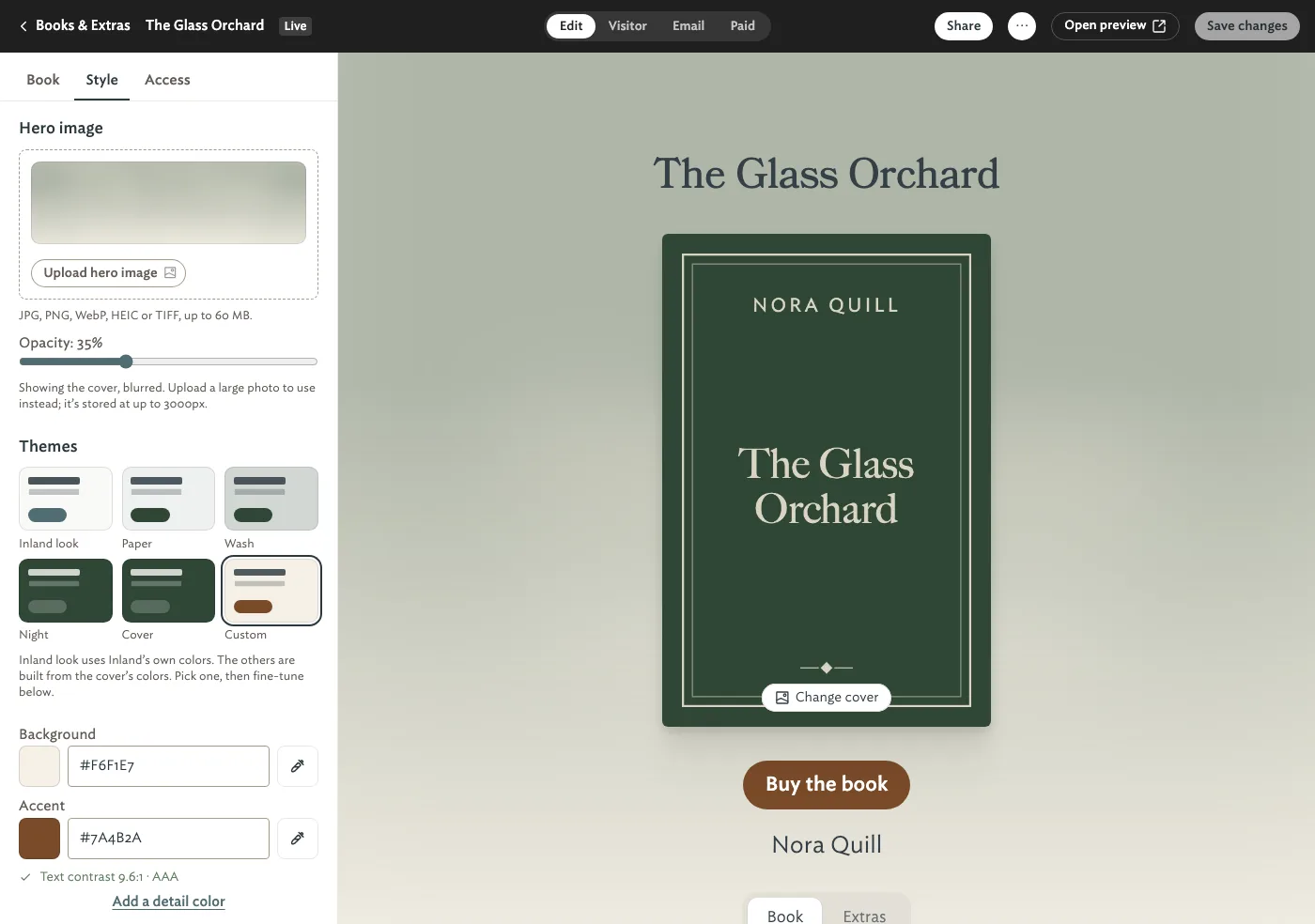
On the Book tab you can list up to six authors in the order the book credits them: your team’s hosts, or anyone else by name, with a photo you upload. A page needs at least one author. You can add a shared credit (“illustrated by…”), and add Where to buy links, which open from the cover and the Buy the book button. The headline, introduction and each extra are edited directly on the page.
Add extras
In the Extras view, click Add extra and choose a type (on a page that’s only the book, Add bonus content under the book takes you there with the list open):
- Audio
- Commentary, a reading, an audiobook chapter. Up to 1 GB: MP3, M4A, WAV, AIFF, AAC, OGG or FLAC. Volume is leveled so everything plays at a comfortable loudness.
- Video
- An interview, a talk or a look behind the scenes. Up to 10 GB: MP4, MOV, WebM or MKV, shown at up to 1080p. If the video already lives on YouTube, Vimeo or PBS, you can paste a link instead: an ordinary YouTube link (watch, youtu.be or Shorts; it plays from youtube-nocookie.com), a Vimeo link (including an unlisted video’s private link), or a PBS player link (starting https://player.pbs.org, from the video’s Share or Embed option). Links from other sites can’t be used. Visitors in the EU, the UK and Switzerland see a play button first, and the YouTube or Vimeo player loads when they click it.
- Reading guides, notes, bonus chapters. Up to 200 MB. Readers read it right on the page and can always download it.
- Note
- A letter to readers, in text.
Give each one a Title, a short Label and a Description, then add its file: drag it onto the extra, click Upload, or Choose from library. Dropping a file on an extra that already has one replaces it. Before it uploads, you confirm that your team has the rights to share the file, including any music, clips or images in it. Audio and video upload once your team pays Inland in some way: a card or bank account in Billing, payouts for paid events, or an Access plan. PDFs upload any time. Teams on Inland before this rule came in upload as before.
New uploads take a little while to process. A video on Mux is usually ready to stream in a minute or two; audio, PDFs and videos processed by Inland take longer, and a long video can take 20 minutes. You can close the page while it processes. Until then participants see “Coming soon” in its place. If a file can’t be processed, the extra says why: click Try processing again, or Try again on the file in the Library. An extra with no file yet, or a note with no text, stays out of participants’ view (and out of the extras count) until you fill it in. Use Move up and Move down to put extras in order, and Allow downloads if you’re happy for participants to keep audio or video files.
Record right in the page
No studio needed. Click Record on an audio or video extra, then Start recording. Audio can run up to 3 hours, video up to 60 minutes, and you’ll get a warning 5 minutes before the limit. When you’re happy, click Save to this extra.
The recording is backed up in your browser as you go, so if the tab closes you can choose Recover your unsaved recording next time.
Use headphones and a quiet, soft-furnished room. The sound advice for live events applies here too.
Trim, captions and transcripts
Trim cuts the start or end: drag the handles and click Save trim. For video, add captions (.vtt or .srt); for audio, a transcript (.vtt, .srt or .txt). Captions make extras usable for more readers, and the publish check reminds you if any are missing.
Videos on Mux are trimmed by Mux: the trimmed version plays a few minutes later, and until then readers see the current one. The whole original is kept, so you can change the trim, or go back to all of it, at any time. A trim you choose when you record, before you save, is kept too: the extra shows as processing until Mux has cut it, so readers never see the untrimmed recording. If Mux can’t cut it, the extra stays hidden and says so: click Trim again, or upload the video again.
Leave Auto captions ticked when you upload and Mux makes captions from the audio a few minutes after the video is ready. Choose the Language spoken in the video (English unless you change it): Mux supports English, Spanish, French, German, Italian and Portuguese, and more languages in beta. Captions come out in the language spoken; Mux doesn’t translate. Readers turn them on with the CC button. You can also upload your own .vtt or .srt file; readers can choose either.
Your media library
The Library tab holds every audio, video and PDF file your team has uploaded. Use a file on any of your pages; if you replace or re-trim it in the library, every page that uses it updates. That’s handy for a publisher with a clip that appears on several books.
For licensed material, mark a file Streaming only and add a date the license ends. After that date it stops playing for everyone, and we’ll remind you 14 days before.
New videos are processed by Mux, Inland’s video partner, and show a Mux badge in the library. Videos uploaded before Mux, processed by Inland, keep playing as they are. They work like any other file: use one on any page, or delete it once no page uses it. In the library, tick the rights box, then drag files onto the upload area (or click it to choose them); each one uploads in turn, with its progress. Videos you add there go to Mux too, with the same limits, the same Auto captions box and the same Language spoken in the video menu; audio and PDFs are processed by Inland as before. To change one, drop a new file on it in the library, use Replace file, or upload a new video to the extra: participants keep the current video on every page that uses it until Mux has the new one ready, and the new video counts toward your team’s monthly minutes. Mux makes auto captions again if you leave the box ticked. If you uploaded your own captions, the extra asks you to Check captions: participants don’t get them until you say they still match, or upload new ones.
Videos on Mux can be up to 10 GB and 12 hours each, and there’s no limit on how many you upload. A big file takes a while, and you have 24 hours to finish it, so keep the tab open until it ends. Videos go up in 64 MB parts and a part that fails is sent again by itself; if the upload still stops, click Try again and it carries on from where Mux left off. If your team needs a larger file, ask us in the in-app chat.
Choose how readers get in
Every extra has a Who can open this setting:
| Setting | What readers do |
|---|---|
| Free with email | Create an account and choose to share their name and email with the author and your team. The consent box is never ticked for them. |
| Free with the book | Enter the code printed in their copy. No email is shared. |
| Sold on its own | Buy just this extra. It’s also included in full access. |
| Full access only | Included when a reader buys the whole page. |
A common mix: a free audio note for an email, the reading guide free with the book, and the long interview for sale.
Prices
On the Access tab, set the Full access price. One payment unlocks every extra, including ones you add later. Prices are in your team’s currency: US dollars, from $1 to $1,000, or British pounds, from £1 to £1,000, if your team is based in the UK. A single extra can’t cost more than full access, and anything a reader already bought comes off their full-access price. Only team admins can change prices.
Book codes
Codes let people who own the book in, without asking for their email. Open Book codes from the Access tab.
- A book code is one code per edition, printed in every copy (on the copyright page, say, or a bookplate). You can cap how many readers can use it, set a last day, replace it, or turn it off. Readers who already used an old code keep their extras.
- Single-use codes are for events, advance copies and inserts. Make up to 10,000 at once; each works only once. Download CSV to send them to a printer, or Print cards for a ready-made sheet with QR codes.
Codes are forgiving: capitals, spaces and dashes don’t matter, and easily confused characters like 0 and O count as the same.
Proof of purchase
For books that went to print without a code, readers can unlock with a photo or PDF of their receipt. Choose Receipt or Receipt or code under Proof of purchase in the editor’s Access tab.
Readers drop the file onto the upload box (or choose it), and can add an order number if they have one. Unless your team has automatic receipt checks (below), receipts are accepted as soon as they’re uploaded: the extras that are free with proof of purchase open straight away, and nobody on your team needs to approve anything. The same receipt can’t be used twice. Team admins can look through what was uploaded from the Books & Extras dashboard (Manage → Receipts) to spot anything odd. The list shows a reader’s email only if they chose to share it with you; uploading a receipt doesn’t share it. Receipt files are deleted after 30 days; the date, the reader and any order number stay.
Automatic receipt checks
We’re starting to check receipts automatically, team by team; message us in the chat if you’d like it. Each receipt is read by an AI model the moment it’s uploaded, to see that it’s a real purchase and that it shows your book: its title or ISBN. It looks for the shop and the date too. All it keeps is a short verdict like “till receipt from a bookshop · title on line item”, never names, addresses, card numbers or order numbers.
- When the check is sure, the extras open straight away, as before.
- When it isn’t (a blurry photo, a receipt for another book, a photo of the cover), the reader is told the team will check it, and the receipt shows as Needs review in Receipts, with a short line saying why, such as “Waiting because: Your book wasn’t found on it”. Open the file, then click Approve to open the extras for them, or Decline. Either way, we email the reader to tell them, with a link back to the page. They can also upload a clearer receipt in the meantime.
- The check never turns a receipt down on its own. If it can’t run (a busy day, or a file it can’t read), the receipt waits for you in the same way.
We don’t email you when a receipt needs review yet, so look in Receipts now and then. Receipt files are still deleted after 30 days.
Preview it as a reader
The switcher in the editor bar shows the page as different readers see it: Visitor (not unlocked yet), Email (unlocked the free extras), and Paid (bought everything). Check each one. From the dashboard’s Manage menu, Open as a new reader lets you try the whole sign-up flow.
Publish, or set a release date
Only team admins can publish. Click Publish in the editor bar. Inland checks the page first and lists anything still Needed: a cover, an author, at least one extra that’s ready, a full-access price, and payouts set up if you’re selling. The author can be a host or anyone credited by name; a host who has left your team needs to be removed under Authors, or added again as someone who isn’t a host. A page with no extras needs only a cover, an author and a description under About the Book. It also notes files still processing and missing captions, and a page with no Where to buy links, which has no Buy the book button. You can still publish it and add the links later.
To launch on a particular day, perhaps publication day, choose Release date first. Pick the date, time and time zone, and whether to Show a teaser before then or Keep the page hidden. With a teaser, readers can tap Notify me and get an email when it opens. You can let people buy ahead of release, and give individual extras their own later dates for a staggered launch. The publish button then reads Publish and schedule.
If you move the date, tick Email the people waiting about the new date to let them know. Each person gets at most one of these emails a week, so if you move the date again within a week, anyone already told isn’t emailed again.
See how it’s doing
View analytics, in the page’s Manage menu, shows visitors, unlocks, purchases, retailer clicks, net revenue and emails shared, for 7, 30 or 90 days or all time. The Sources tab shows where readers came from and how many of them unlocked; the per-extra table shows what readers actually finished. Download CSV exports it all.
We count visits without third-party trackers, and your team’s own visits aren’t counted. You see totals, never one person’s browsing.
Exporting emails
Admins can choose Export emails for readers who shared their address: a full list with consent records, or a file ready for Mailchimp or Substack. Each export is logged. Use the list the way readers agreed to: about this book and related work.
Refunds
Readers get a full refund if they ask within 14 days and haven’t opened or downloaded what they bought, if they were charged by mistake, if something doesn’t work and can’t be fixed, or if the page closes or the extra is removed within 30 days of their purchase. The details are in the Bonus Content Terms.
Readers ask by emailing us, and we handle it with you. A refund ends the access that purchase gave, and the reader gets an email confirming it. The refunded amount comes back out of your team’s balance.
Changing or closing a page
You can edit a live page any time. A few rules protect readers who already have something:
- You can’t delete an extra someone has; you can only hide it from new readers (Hide from new readers, in the extra’s menu).
- You can’t change an extra’s access in a way that takes it away from people who have it.
- A live page keeps at least one extra readers can see. To remove the last one, add another first, or close the page.
- You can unpublish only while nobody has access to anything.
To close a page, choose Close page from its Manage menu. Readers are emailed the same day and keep access for 30 days, with the chance to download what they have. A page with no readers closes straight away. You can reopen a closed page at any time, and your files stay in the library.
Each reader gets at most one closing email a week. If you reopen a page and close it again within a week, readers already emailed about closing aren’t emailed again; the Close page window says how many that is. They still keep access for 30 days from the new close.
Reopening puts the page live again, so it needs what publishing does: at least one extra readers can open (a clip whose license has ended doesn’t count) and, if it sells anything, payouts set up. If something’s missing, Reopen lists what’s Needed, just as Publish does.
A draft that was never published, and that nobody has unlocked, bought or sent a receipt for, can be deleted instead: team admins choose Delete draft from its Manage menu. Its files stay in your Media Library, and its address is free to use again. This can’t be undone.
Still stuck?
Email hello@inlandbooks.com. A person on the Inland team reads every message.