Running your live event
The live room, button by button: getting in early, the stage, chat, questions, showing the book, raised hands, breakout rooms, recording and Speaker view.
On this page
What Inland sends before the event
You don’t need to send reminders yourself, though a personal note never hurts. Inland emails:
- Participants: a confirmation with a calendar invite and any pre-work as soon as they register, a reminder the day before (subject “Tomorrow: {event title} with …”), and another about 15 minutes before the start (“Starting soon: {event title} with …”). The confirmation and the day-before reminder open with the event’s preview card, the same image link previews show.
- Your team: a heads-up the day before and again about an hour before.
In a series, the day-before reminder goes out for each session.
Joining from the email
The confirmation, the day-before reminder and the reminder about 15 minutes before the start each have a Join the event button that signs the participant in and takes them to the live room, with no sign-in code to look for. It works until 2 hours after the last session ends, and only while their registration stands; a canceled or refunded registration’s link stops working. The calendar invite keeps the plain event link. The email to participants who missed the event works the same way for a participants-only replay: its Watch the replay button signs them in and opens the replay, for 30 days. A public replay’s button is the plain replay link.
The button is personal to each participant, so remind people not to forward the email. Hosts and your team don’t get the shortcut: sign in as usual and use Join as host on the dashboard. If a link has stopped working, the participant signs in with a code and goes straight to the room. Questions? Message us in the chat.
Doors open an hour early
The room opens for your team 60 minutes before the start. From the dashboard or the event page, click Join as host; on the dashboard the button appears an hour before and stays until the session ends. If you open the room’s link earlier than that, the page says when it opens and lets you in on its own at the hour mark.
Participants can arrive early too, but they wait in a waiting room (“You’re early.”) with a clock counting down to the start, and it lets them in automatically at the start time, spread over the first 15 seconds so a big audience doesn’t all arrive in the same second. So you have the room to yourselves for setup and a sound check, and nobody overhears it.
People can join until 60 minutes after the scheduled end. After that, latecomers are sent back to the event page.
Counting down to the start
While you’re in the room before the start, a countdown shows over the stage so everyone on your team knows how long is left. It shows only to hosts; participants are still in the waiting room.
From the moment you come into the room, a small timer sits in the top-right corner of the stage. For the last 2 minutes it becomes a larger card at the top of the stage. Neither one gets in the way: you can still click everything under or around them.
On the card, under the time, one line tells you where recording stands:
- This session will be recorded: Record this event? is on, so recording starts by itself at the start time.
- Recording is off. You can start it from the controls.: nothing records unless a host presses Record (on a phone, it’s under More).
- Recording isn’t allowed for this event: Disable recording is on, so nobody can record.
- Recording now: a host has already started recording.
At the start time the countdown gives way to “Starting now” and fades out. To change the recording setting, edit the event before it starts.
Joining
Practice first in the Team demo room. In your dashboard, go to Events → Team demo room and click Open the demo room to try the same live room your participants will see: cameras and microphones, the stage, chat, reactions and screen sharing. Teammates who open it at the same time land in the same room; while a session runs, the page shows who’s in it and the button says Join them. Up to 4 people can join, each session lasts 10 minutes (a clock at the top shows the time left), and your team has 4 sessions a day. When they’re used up, the page says when they come back. Under What to try are a few things worth trying before your first event. Nothing is recorded, there’s no link to share, and participants never see it. It isn’t where you run your event: join that from its own page.
Before you enter, Inland shows a preview: “Are you ready to join?” Turn your camera and microphone on or off, pick which Camera and Microphone to use, switch on Reduce for noise reduction, and check your name. Hosts can set the name people will see; participants appear by first name and last initial, like “Maya R.”
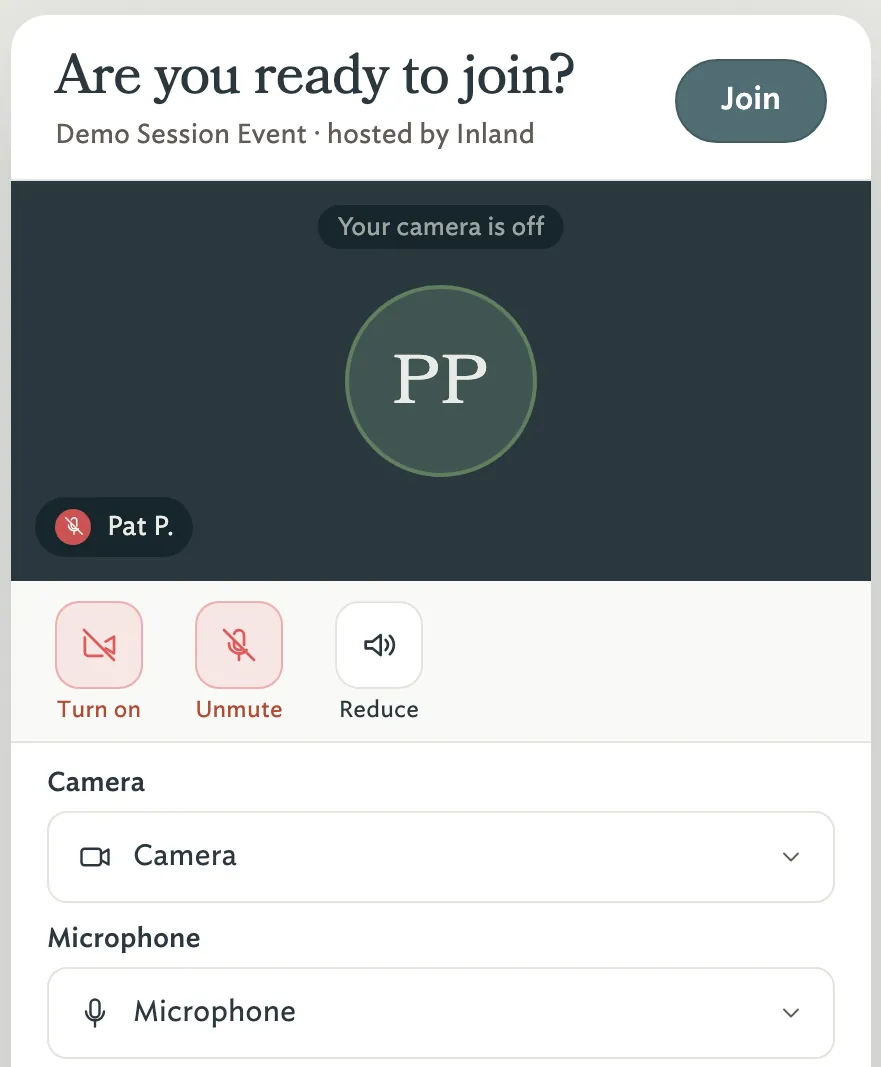
Hosts also see Ready to go live?, beside the preview on a computer and under the pickers on a phone. It lists your browser, permissions, camera, microphone (say something and it turns to “We hear you”), speaker and connection, and each one you can fix or test has its button on its own line: Turn on camera, Unmute, Test speaker (listen for a chime) and Test my connection. A line that passes turns green and shrinks. Press Test my connection to check your upload. It takes up to 30 seconds and tells you if your connection is great, okay or poor, with what to try: move closer to your router, use a wired connection, close other apps. It is only advice. You can always click Join, even mid-test.
In the room, if your own connection gets shaky, a small Connection unstable or Poor connection note appears next to the controls (above them on a phone) and goes away when it recovers.
Click Join. Everyone else arrives with their camera and microphone off, so the room starts quiet.
If the browser is blocking the camera or microphone, the preview says so. See how to allow access.
Around the room
Along the top: the event title, a Speaker / Grid layout switch, and buttons for Speaker view, picture in picture, fullscreen and Settings.
Along the bottom: Cam, Mic, Share, Record, React, Raise, Chat, Q&A, People, Breakout and Leave. On a phone, most of these live under More. Some only show for hosts.
Speaker layout follows whoever is talking. Grid shows everyone at the same size. Anyone on stage always gets the big tile. You can pin someone to keep them big on your own screen. When there are more people than fit (16 in the grid, 12 in the strip under the speaker), you see one page of them at a time: use the arrows in the last tile to see the rest. Everyone stays in the People list.
The Speaker layout isn’t the same as Speaker view, the button beside the switch: that one hides the room and shows only the speaker, full screen, for a projector.
Keyboard shortcuts: M mutes, V turns your camera on or off, H raises your hand, C opens chat, P people, Q questions and O polls.
The stage
The stage is where the conversation happens. Hosts join it with Join stage on their own row in People, and leave it with Leave stage.
To give a participant the floor:
- They raise their hand. You’ll see a small notice with their name, and a ✋ next to them in People.
- Click Bring to stage beside their name. (Or use the ⋯ menu and choose Bring to stage, voice only if you’d rather they didn’t appear on camera.)
- They see “Your host invited you on stage” and click Turn on mic & camera. They can also say Not now.
- When they’re done, choose End turn from the ⋯ menu.
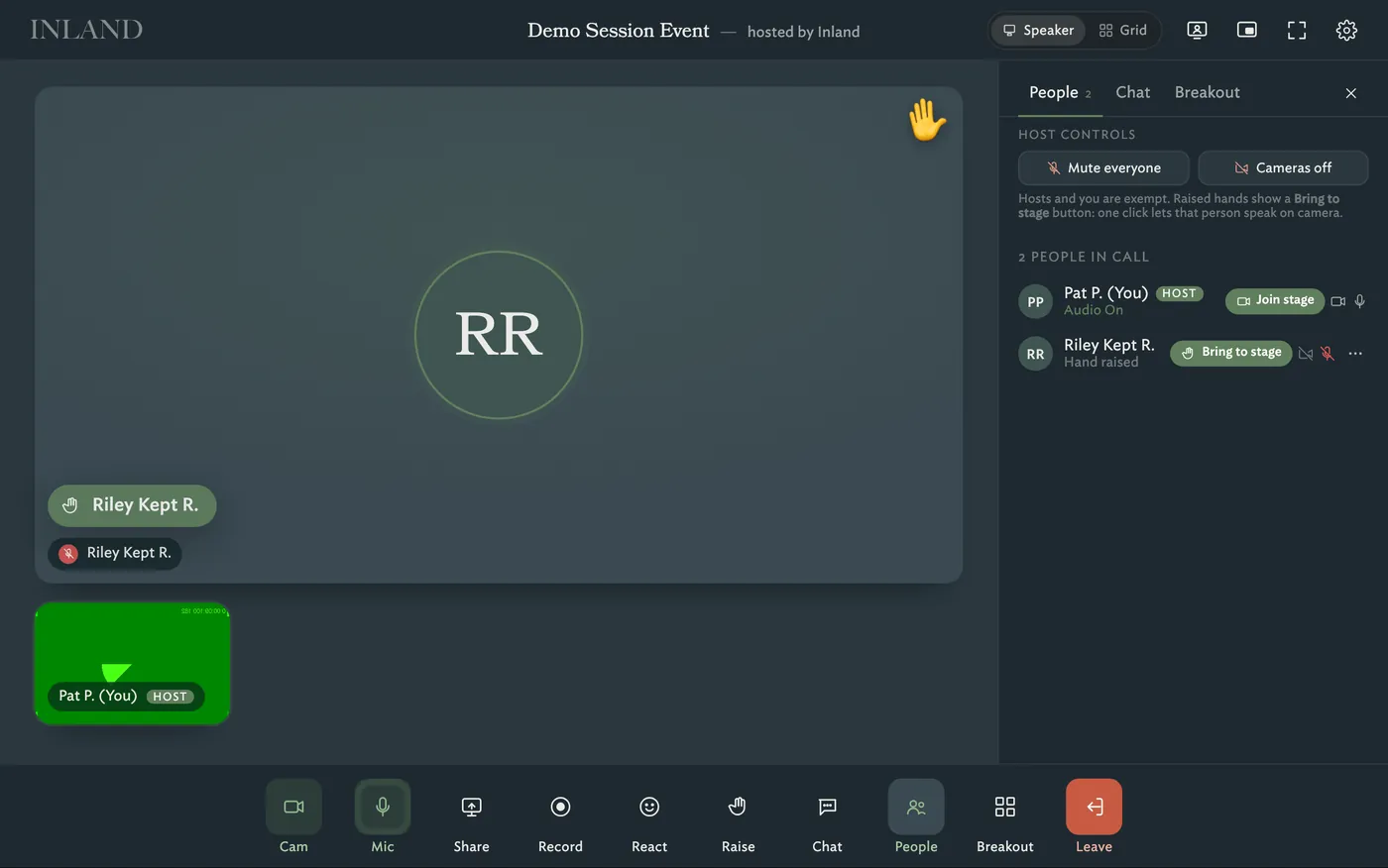
In a press event, People shows hosts a second line under each press attendee, such as “Press · Outlet name”, or just “Press” when their profile has no outlet. Participants don’t see it, and team members are never labeled.
One guest is on stage at a time; bringing up the next person ends the previous turn. This works in both session styles. In a Webinar it’s the only way a participant can be heard, and they can’t share their screen.
Big events: stage and audience
A Webinar, and a Meeting with more than 50 seats, can run as stage and audience. Hosts, guest hosts and anyone you bring up join the video call as usual. Everyone else watches the stage as a stream in the same live room, a few seconds behind, with Chat, Q&A, Polls, React and People (the hosts and everyone watching), so the room stays steady however many people come. To change it for one event, use Audience watches a stream under Session style, recording and replay in the event form.
- Join the room as usual. The audience sees a waiting screen until you go live.
- At the start time the stream starts on its own. Before then the button reads Go live at the start time, so you can get ready on stage without anyone watching; after the start, click Go live if the stream hasn’t started. The audience sees what the stage shows a few seconds later.
- Audience messages, questions and votes show up in your panels like anyone else’s, and their reactions float up on your stage, as yours do on their stream. Because they watch a few seconds behind, give them time: ask a question, then wait half a minute before reading answers.
- To hear from someone, they click Ask on camera and can add a one-line question. You see them in People with their question; click Bring to stage and they join the call with camera and mic, in the same room. End turn (or their own Leave stage) sends them back to the stream.
- Click End stream when you’re done, or just leave: the stream stops when the room closes.
If everyone on stage drops out at once (a lost connection, a reload), the stream pauses. Come back into the room and it carries on by itself. Until then the audience sees Waiting for the stream to start…, and their player picks the stream up again without them doing anything.
Recording and replays work as they always do. For help, message us in the chat.
Chat
Open Chat to see messages, which everyone in the room can read. People can react to a message or reply to it. Links are clickable.
People who arrive late, or reload, see the conversation so far. If a message is out of line, hosts can hide it for everyone: tap the hide button once, then again to confirm.
Questions and upvotes
Every live session has a Q&A tab next to Chat. Participants type a question (the room sees it with their name), see each other’s questions and upvote the ones they want answered, and can add a comment to a question. They can edit or delete their own question while it waits, and have up to 10 waiting at once. You can sort by Popular or Recent, so the questions people care about most rise to the top, which makes it easier than chat for a big room.
For each question, hosts can choose Answer on stage, which shows the question over the video while you answer it, or Answer quietly. Mark it Done afterwards and it moves to Answered. If the event is recorded, each answer is timestamped, so people watching the replay can jump straight to it.
One question is on stage at a time; choosing another moves it along. To clear a question or a comment that doesn’t belong, a host can remove it for everyone (tap once, then again to confirm). Hosts and guest hosts see the same Q&A tab, with a Host tag on their answers.
At the top of the Q&A tab, hosts have two switches: Q&A for this session turns it off or on, and Show questions on the video decides whether Answer on stage puts the question over the video. Turn Q&A off for a session where you’d rather keep questions in chat. Questions are kept for the session, so a host who reloads sees them again. Questions you answer stay under Answered.
Participants can send questions before the event starts. Once registered, they see Send a question for the Q&A on the event page and in the waiting room before the start. For a series, it goes to the next session. Questions also come from a pre-recorded event’s page or a book page’s Ask the author box (see Ask the author ahead of an event). They’re already waiting in the tab when you arrive, with their names and sent ahead beside the time, and work like any other question. Turning Q&A off for a session stops new ones.
Polls
A poll gives a quiet room a way to answer you all at once: “Have you read the first book?” or “Which character should the sequel follow?” Choose Polls in the bar under the video (or press O), then New poll, and write a question with two to five answers. Save poll keeps it ready, so you can write your polls before the event and start them when the moment comes.
Start poll puts it on a card over the video for everyone in the room, where each participant taps one answer. A vote can’t be changed. Choose End poll when you’re done. One poll is open at a time, and a question you’re answering on stage takes the card’s place until you’re done with it.
Hosts see the counts as they come in. Participants see the results after they vote and once the poll ends. Polls show counts only, never who chose what. Each session can have up to 20 polls, and the results are on the event’s Analytics page and in its CSV.
The event’s team writes, starts and ends polls. Hosts can answer too: tap an answer on the card like anyone else. Your vote counts in the totals and on Analytics, and it can’t be changed. If you end a poll and start it again, the card comes back for everyone, including people who closed it.
To practice, open the Team demo room and run a poll there. Everyone in it is a host, and hosts can vote, so a practice poll gets real counts. Demo polls never appear on Analytics, and they’re cleared when your team starts its next demo session.
Show the book while you talk
When the event has a book, hosts have a Book button in the controls (on a phone, Show the book under More). Click it and everyone in the room sees a card with the cover, the title and the author, and a Buy the book button (Pre-order the book before it’s out). The button lists the stores from the event’s book, and each store opens in a new tab, so nobody leaves the room.
On a computer the card sits at the top of the side panel, or in the corner above the controls when the panel is closed. On a phone it’s a slim bar above the controls. Anyone can tap the × to hide it from their own screen; showing the book again brings it back for them.
When you’re done, click Book again (on a phone, Take down the book under More). People who join late or reload see the card if it’s still up. Guest hosts can’t put the book up or take it down.
To see how it looks, try Book in the Team demo room. It shows the book from your team’s next event, or a sample “Book Title” card if that event has no book yet.
If you showed the book, the event’s Analytics shows Went to buy the book afterward: how many participants opened a store from the room, each person once. Inland can’t see what they bought at the store.
Press events: embargo and For press
On a press event, the event form has an optional Embargo under More options: the date and time press should hold coverage until, and one short line, such as “Please hold reviews until publication day.” Leave it empty and nothing shows anywhere. When you set one, approved press see it on the event page and in the reminder the day before. In the live room, they and your hosts see it as one quiet line, before joining and at the top of the side panel, that fades after a few seconds; the × hides it for good on that person’s device. Each person sees the time on their own clock. Nobody outside the event sees it, and it goes away once the time has passed.
In the room, approved press also get a For press section with the book’s galley (Read galley, Listen or Read or listen when they have it, Request galley when they can ask for it) and its Press kit, when the book page has one. They open in a new tab, so nobody leaves the room. When the event records a replay, it says Replay for approved press: only press you let in and your team can watch it. For help, message us in the chat.
Reactions and raised hands
React sends a quick 👍 👏 🎉 😂 and friends across the screen; the number keys 1–8 do it too. It’s a nice way for a big, quiet audience to show they’re with you. Try asking for a 👏 after the reading.
Raise puts up a hand. Hosts get a notice with the person’s name, and the hand stays up in People until it’s lowered or the person is brought to stage.
Keeping the room comfortable
In People, under Host controls:
- Mute everyone and Cameras off act on all participants at once. Hosts aren’t affected.
- The ⋯ menu beside a person has Mute mic, Turn camera off and Remove from event.
Removing someone takes them out of the event, breakout rooms included, and tells our team so we can follow up. Use it when you need to. You don’t have to tolerate anyone spoiling an evening for everyone else.
Send your camera in high quality
Hosts, guest hosts and anyone you bring on stage can switch on High-quality video, on the “Are you ready to join?” screen or under Settings in the room. It sends your camera in full HD (1080p), so you look sharper for everyone. Turn it on only when you know you’ll stay on a fast, steady connection. On a weak connection your video may stutter. It changes at once, with no need to rejoin, and stays on for your next event. Participants don’t see the switch, and recordings and replays are unchanged.
Use OBS or Ecamm as your camera
If you use OBS or Ecamm Live for slides, lower thirds or a nicer camera, you can send that picture to Inland as your webcam. Nothing to set up on our side: the camera list shows every camera your computer has, virtual ones included.
- In OBS, click Start Virtual Camera. In Ecamm Live, the virtual camera is on by default.
- Open the live room, or the Team demo room, and before you join, choose OBS Virtual Camera or Ecamm Live Virtual Camera under Camera. You can also switch later under Settings.
- Under Microphone, choose your real microphone.
Keep it simple, and try it in the Team demo room first.
This is not a stream key. Inland doesn’t take RTMP streams, so use the virtual camera instead.
Breakout rooms
Breakout rooms split the group into small discussions and bring everyone back after. They’re the heart of a good book club.
- Open Breakout. Choose the Number of rooms (up to 20); Inland suggests how many people that puts in each.
- Click Assign automatically, or select people and move them into rooms yourself.
- Pick a Session length: 5, 10, 15, 20 or 30 minutes.
- Click Start breakout session.
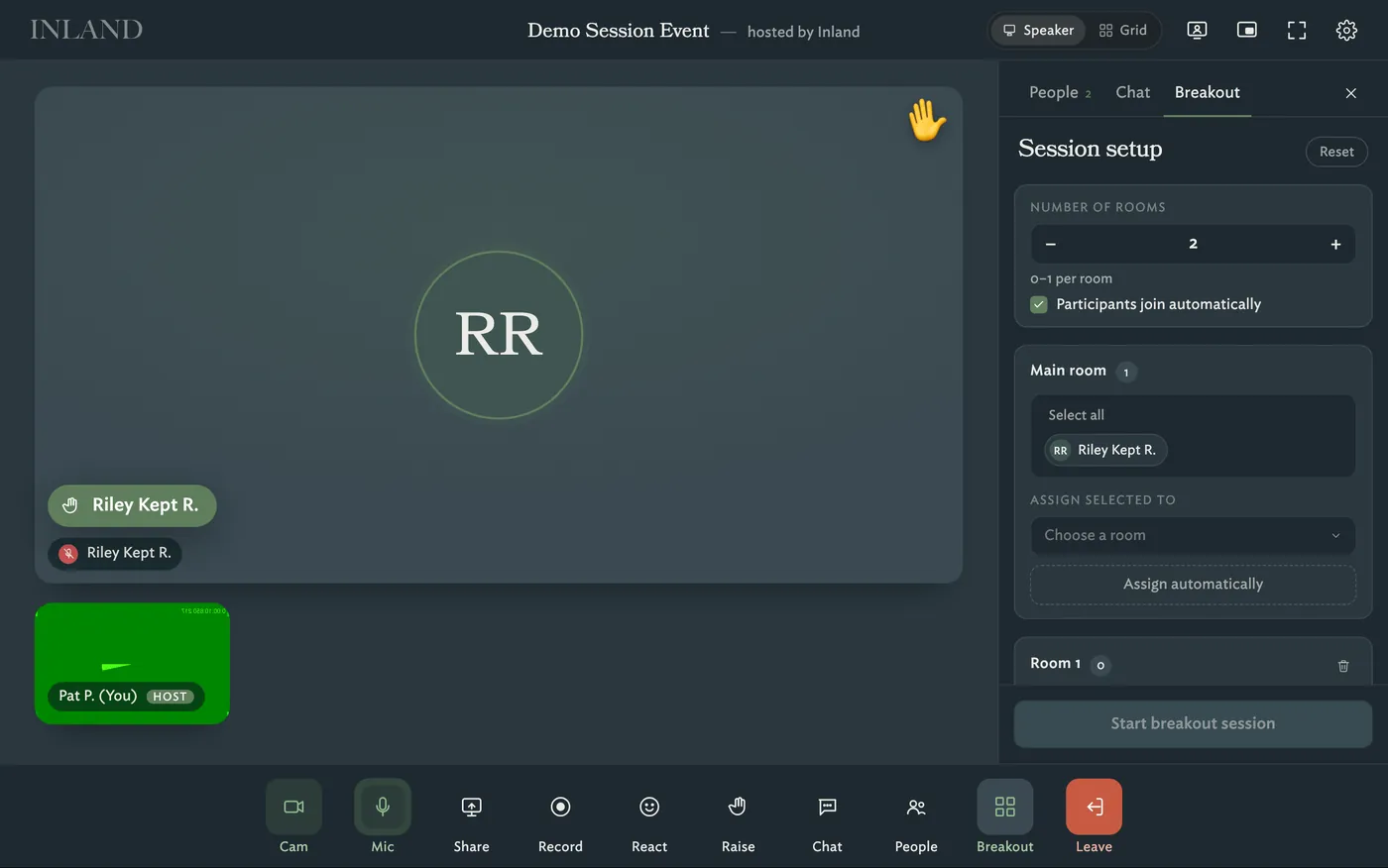
Participants move into their rooms on their own, unless you turned off Participants join automatically, in which case they get a Join room button. Latecomers go to the least busy room.
While rooms are open, a timer counts down. You can visit any room with Join room, and send a note to every room at once (“Five minutes left. Pick one question to bring back”). When time runs out, or you click End breakout session, everyone returns to the main room together.
Recording
If Record this event? is on, recording starts by itself at the start time, not when you enter early, so the sound check isn’t in the replay. You’ll see Recording at the top of the room, and a note in the chat.
Hosts can also start or stop it with Record. Stopping asks you to confirm.
- If the last host clicks Leave, the recording stops. While a recording is running, the last host’s Leave window says so before they go.
- If a host’s connection drops instead, it keeps going for a while so you can get back, then stops on its own if no host returns.
- Breakout rooms aren’t interrupted by any of this.
Participants are told before they join that the event may be recorded. The replay is made by itself after the event. More in After your event.
Automatic replays
The replay is made from the recording by itself. It starts at the scheduled start time and ends when the last host leaves, so stay until you’ve said goodbye, then click Leave. If a connection drops for a minute or two, the replay carries on. More in After your event.
Speaker view, for a projector
Speaker view shows only the person speaking, filling the whole screen, with no tiles, chat or buttons. It’s made for a group watching together on one screen: a library meeting room, a classroom, a book club in someone’s living room.
Click the Speaker view button at the top of the room (on a phone, it’s under More). It goes fullscreen and shows, in this order of preference: a shared screen, the host or guest who is talking on camera, then anyone else on camera. A picture always beats a name, so someone with their camera off only shows (as their name) when nobody else has a camera on. It shows you only when nobody else is in the room (handy for a practice run in the Team demo room), and switches to the first person who joins. A shared screen is framed the way it is in the room, at its own shape with the room around it, and whoever is talking sits in its corner (you, if it’s your screen and nobody else has spoken). It waits a couple of seconds before switching between people talking, so a cough doesn’t steal the screen. Press Esc, or move the mouse and click Exit speaker view, to return.
If you know a group will be watching together, tell their organizer about it beforehand.
Who does what on the day
Everyone on your team joins with host controls. A good split for a busy event:
| Who | Does |
|---|---|
| Author | On stage. Talks, reads, answers. Ignores the chat. |
| Moderator | Opens and closes, reads questions from chat or Q&A, brings people to stage, keeps time. |
| Tech helper | Watches People, mutes noise, runs breakouts and recording, helps anyone stuck. |
Guest hosts in the room
A guest host (someone with the Guest role, or an author who said yes to Ask to host) joins with Join as host and appears under their host profile’s name and photo. They’re a host on stage, but they don’t run the room: they can’t record, use Host controls in People, bring people to stage, remove anyone or hide chat messages. Make sure someone from your team is in the room to do those. More in What’s a guest?
Ending
There’s no “end for everyone” button, and you don’t need one. Say goodbye, thank people, and click Leave. The room stays open for anyone still chatting and closes on its own a few hours after the scheduled end. After that, participants can’t add chat messages or questions.
When the session ends, participants see your book, a Follow button and where the replay will be. When the room closes, participants still in it see Thanks for coming, with the event’s book and Buy the book, a Follow button for the first host (or your team) if they don’t follow yet, and The replay will be on the event page when the event records with automatic replays and nobody has to review it first. They stay on that screen until they choose Back to the event or My events. People who leave in the last minutes see the same book and Follow button.
Hosts see The session has ended and go to the event’s Analytics a few seconds later (See how it went). After the scheduled end, Remove from event ends the session for that person in the same way: it says goodbye rather than removing someone, and our team isn’t told. Before the scheduled end it’s a removal.
If you leave by mistake, go back to the event page and join again while the session is open.
Still stuck?
Email hello@inlandbooks.com. A person on the Inland team reads every message.